Send From Any Alias
To send email from your domain, each address normally needs its own SMTP
username and password: one for [email protected], another
for [email protected].
An ANY ALIAS credential is a single username
and password that sends from all of them — including addresses you've never set
up as an alias in ImprovMX. It covers one domain, so hooli.com would
need its own.
Note: This works in Apple Mail, on macOS and iOS, and in Thunderbird. It doesn't work with Gmail.
Create one
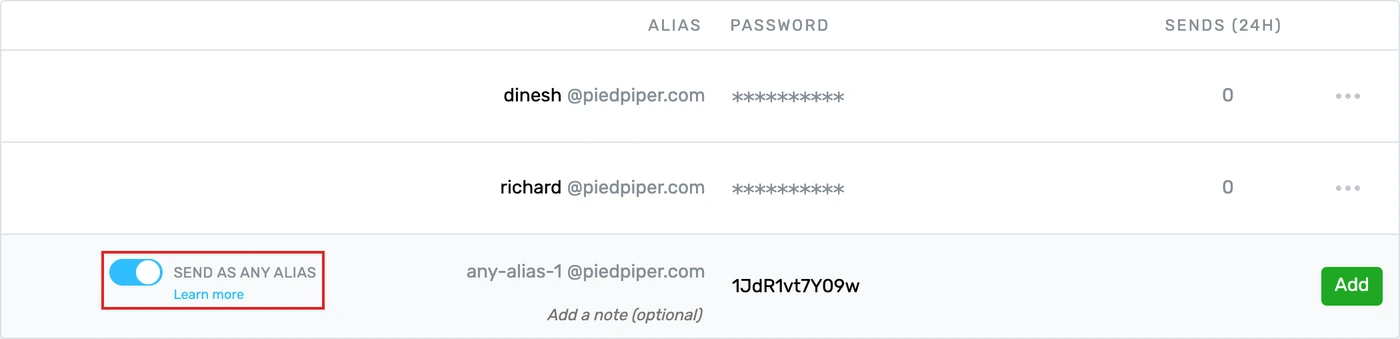
1. Select your domain and go to the SMTP Credentials tab.
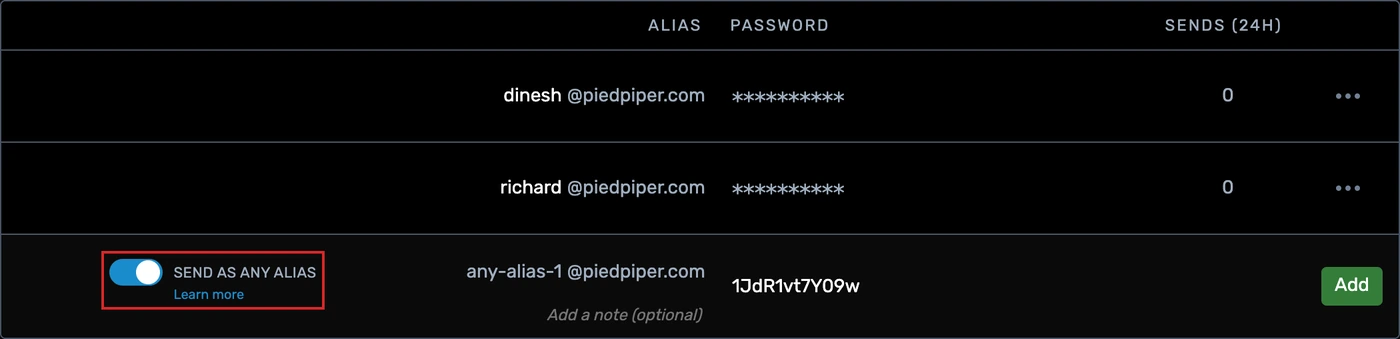
2. On the bottom row, switch on SEND AS ANY ALIAS. The username fills itself in as any-alias-1 and locks, so there's
nothing to type.
3. Keep the generated password or type your own, then click Add.
Set it up in Apple Mail
Add the any-alias-1 credential as your outgoing server — our macOS and iOS guides walk through it.
Then add every address you want in the From menu. Use the real
addresses you send from, like [email protected], not the any-alias-1 username.
macOS: Mail > Settings > Accounts > your account > Account Information > Email Address > Edit Email Addresses.
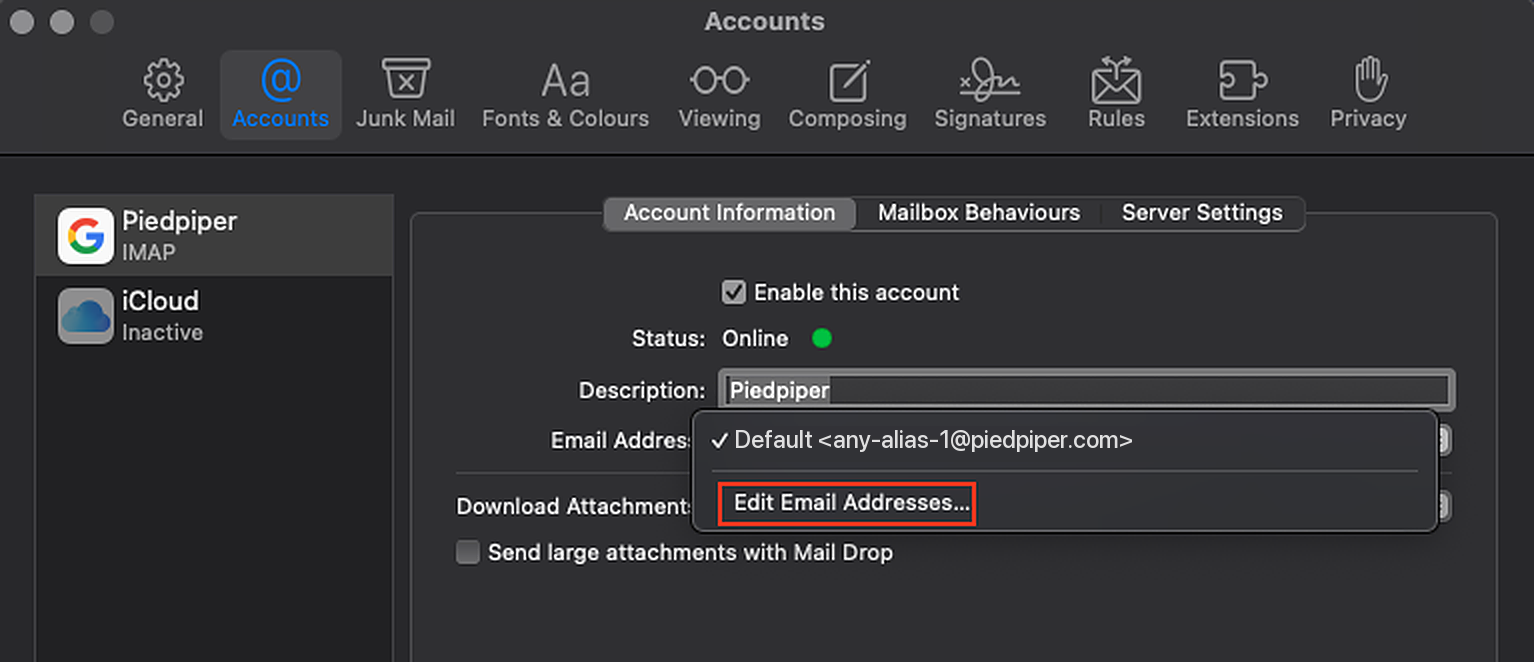
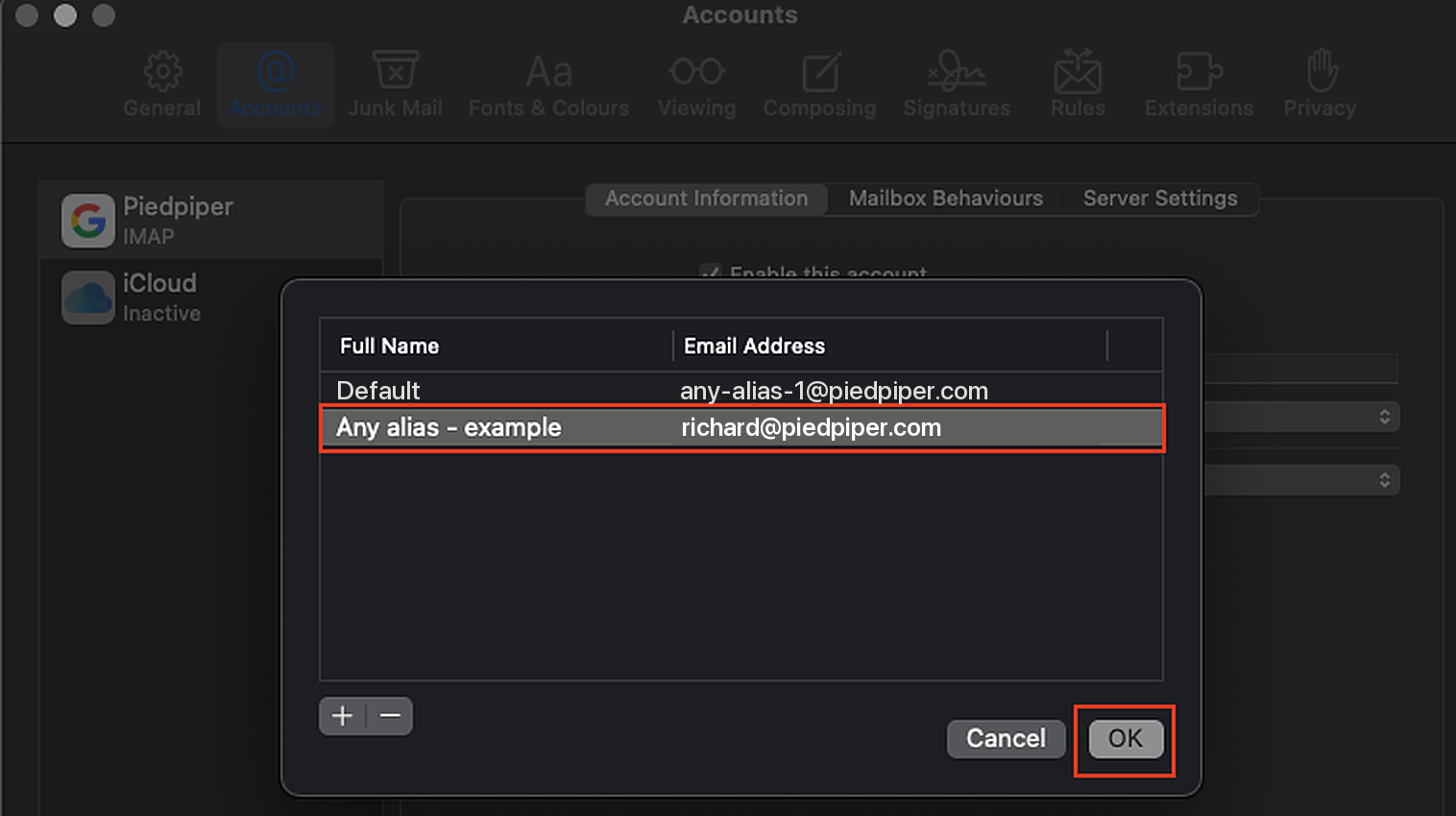
Click + to add each address on its own row. You can now send a message from any address you add (on the credential's domain).
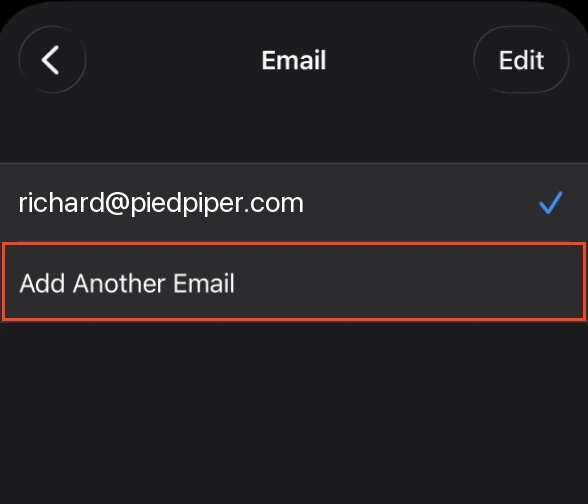
iOS: Settings > Apps > Mail > Mail Accounts > your account > Account Settings > Email > Add Another Email Address, once for each address.
Set it up in Thunderbird
Add the credential as your outgoing server and give it one identity — our Thunderbird guide walks through it. The username is the any-alias-1 login, not the
address you send from.
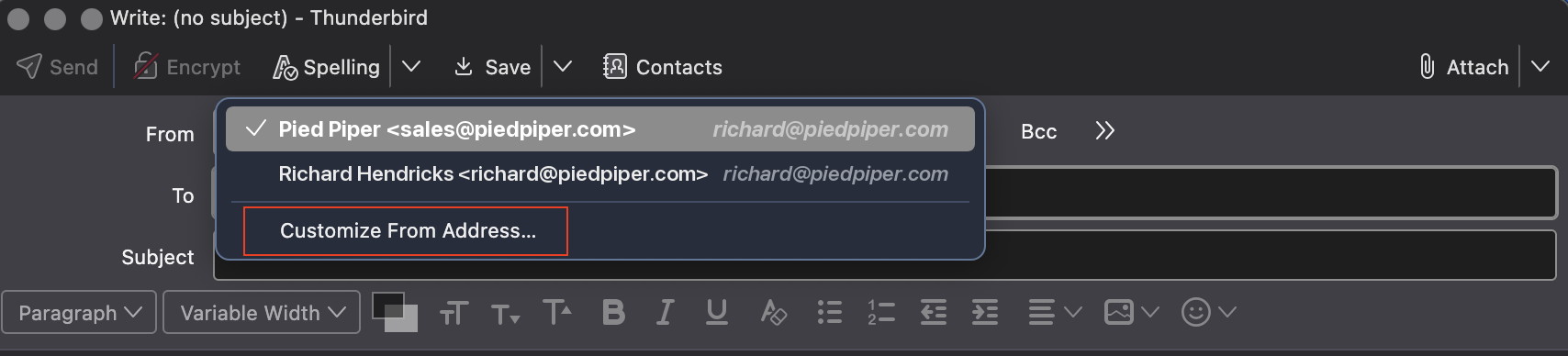
That one identity is all you need. To send from a different address, start a new message, open the From menu and click Customize From Address…, then type the address you want.
Still have questions? Feel free to reach out to us at !