Apple Mail (iOS) with ImprovMX SMTP
Note: You must be a paid subscriber to use ImprovMX SMTP.
This guide sets up iOS Mail to read forwarded mail from Gmail over IMAP and send from an address on your custom domain — like [email protected] — through ImprovMX SMTP.
Prerequisites
- Your domain set up in ImprovMX, forwarding to Gmail
- An SMTP credential created in the ImprovMX dashboard
- DKIM records added in DNS
- 2-Step Verification enabled on your Gmail account
- A Gmail App Password for IMAP — generate one here
Step 1: Add the account
Go to Settings > Apps > Mail > Mail Accounts > Add Account.
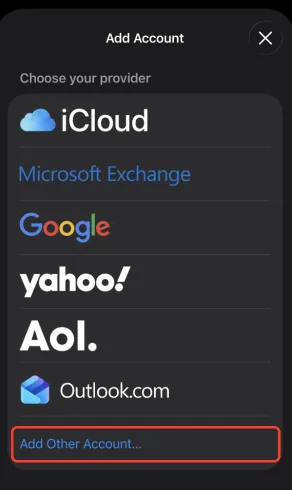
Skip the email field — tap choose from a list, then Add Other Account.
Don't pick Google. Its auto-setup locks the sending server, so you can't switch it to ImprovMX SMTP.
Step 2: Enter account info
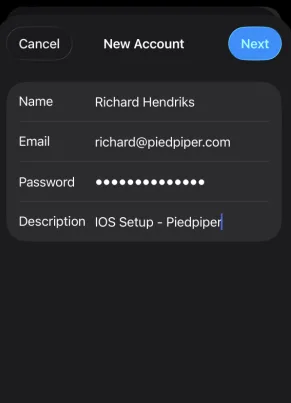
- Name: Display Name
- Email: ImprovMX sending alias (e.g.
[email protected]) - Password: Gmail App Password
- Description: any label you like
Tap Next.
Step 3: Enter mail server details
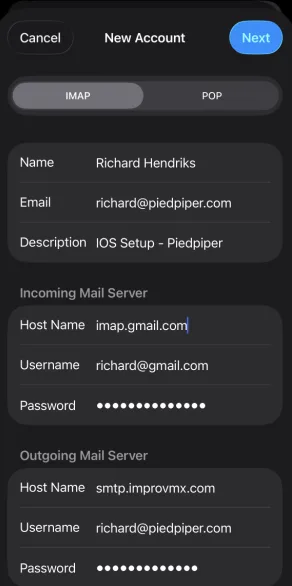
Select the IMAP tab, then fill in both servers:
- Incoming Mail Server
- Host Name:
imap.gmail.com - Username: your Gmail address
- Password: Gmail App Password
- Host Name:
- Outgoing Mail Server
- Host Name:
smtp.improvmx.com - Username: your ImprovMX SMTP credential username
(e.g.
[email protected]) - Password: your ImprovMX SMTP credential password
- Host Name:
Tap Next.
Step 4: Finish account setup
Leave Mail switched on — Notes is optional — then tap Save.
Step 5: Set the outgoing port
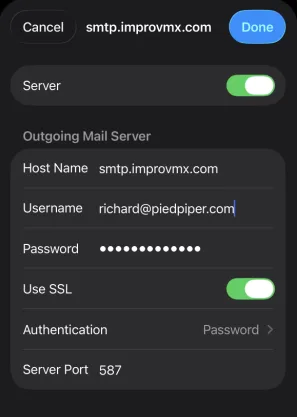
Open Settings > Apps > Mail > Mail Accounts, tap the account you just added, then Account Settings > SMTP > Primary Server.
- Turn on Use SSL
- Authentication: Password
- Server Port:
587
Tap Done.
Step 6: Send a test
Compose a message, check From shows your alias, and send it to another address you own.
That's it. iOS Mail now sends from your custom domain via ImprovMX SMTP and receives over Gmail IMAP.
Keep Google Contacts and Calendar in sync
The account above handles mail only. To get your Google contacts and calendar on the phone too, add the Google account separately — Settings > Apps > Mail > Mail Accounts > Add Account > Google, sign in, then turn Mail off and leave Contacts and Calendars on.
Leave Mail on and the same Gmail inbox shows up twice — once under the custom-domain account, once under Google.
Sending from more than one address
The above setup sends from one address only — say [email protected]. Anything else in the From field won't send.
To send from every address on your domain — [email protected],
[email protected], and the rest — swap in an any alias credential, then add each address here:
Settings > Apps > Mail > Mail Accounts > your account > Account Settings > Email > Add Another Email Address
An account can only have one outgoing server. To send from a second domain or from your Gmail address, add each as its own Mail account.
Questions? Reach out — we're happy to help.